
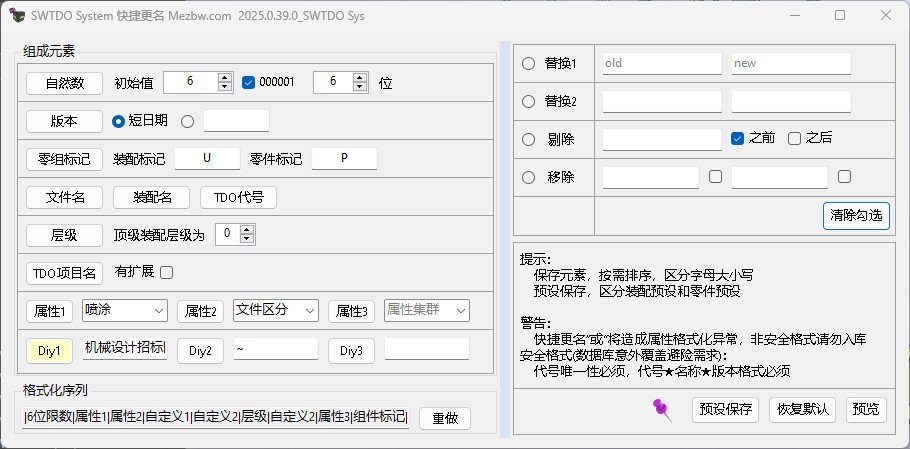
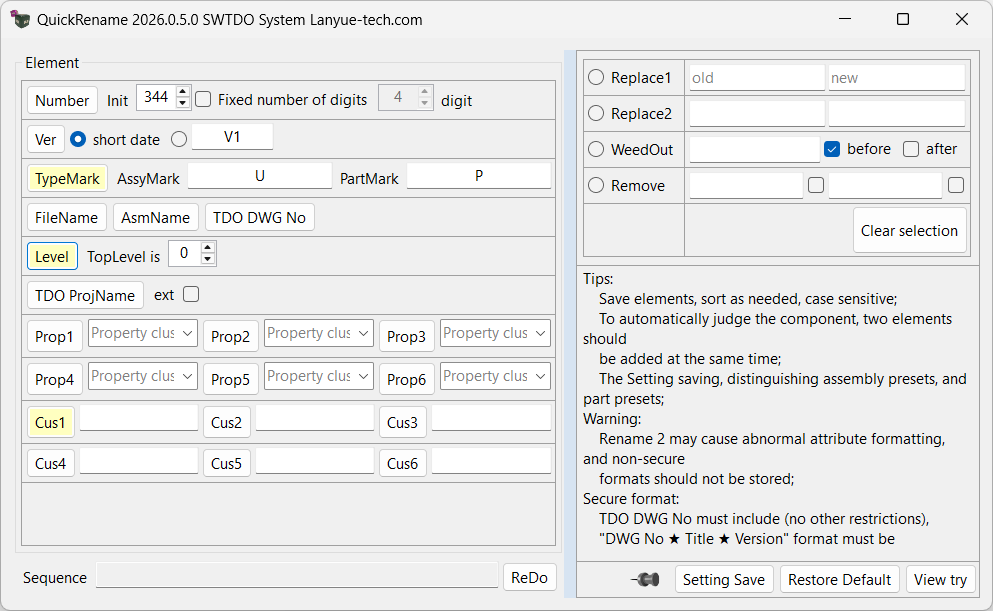
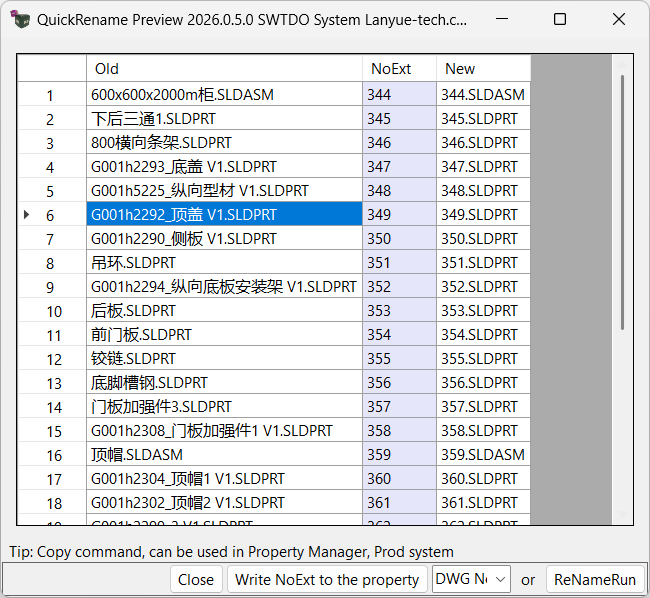
1. The Property Manager supports multi-select batch processing in assemblies, multi-level path batch processing, and batch processing for parts, assemblies, and weldment profiles. It also includes storage functions for adding, deleting, and modifying three custom forms.
2. Except for weldment profiles, the modification results of the Property Manager are mainly targeted at “Configuration Specific” properties. However, the modification target includes both custom and configuration properties. That is, regardless of whether the component’s property exists in custom or configuration specific, the final result will only appear in the configuration specific properties.
3. In Standard Property Mode, property values have multiple different execution logics. For example, “Quantity” only applies to the active configuration of the assembly, while “DWG No” is a serial number and not identical. Different properties produce different results.
Properties are the central chain of various automations in SWTDO.
When creating templates, they are used in combination with “Create 3 Views” and “Add Template”.
Features that can be linked with the Property Manager include (but are not limited to): Smart Rename, Prod System, Prod Tools, Entity List, Drawing Output;
In the Enterprise Edition, this also includes the Sheet Metal Quoting System and Parametric System.
Configuration Specific is the primary target processed by the Property Manager. Regardless of whether the original property of the part is Configuration Specific or Custom, we always prioritize Configuration Specific. Please watch the video for details.
If “Include Custom” is checked, the component’s custom properties will be copied to the “Default” configuration in Configuration Specific properties.
The properties in Standard Property Mode consist of two parts:
- TDO Basic Properties
- All Property Sets of the Current Assembly
The settings of TDO Basic Properties depend on the Prod System settings. The following lists the recommended meanings in TDO.
All property sets of the current assembly (Property Cluster). When the Property Manager starts, it extracts all properties of all components in the entire assembly and merges them into a unique set after the TDO Basic Properties.
| Property Name | Description | |
| ※ | DWG No | The core property of the entire SWTDO system |
| TITLE | ||
| Ver | ||
| Configuration | In TDO, DWG No + Configuration is used as a dual primary key index | |
| ※ | File Type | Equivalent to the file type in the GetNo System, such as Machining, Sheet Metal. Note that “Finished Product” exists in both File Type and Part Type with different meanings. Also, the File Type Avoidance rule during initialization refers to this property. |
| DRAWN | ||
| CHKD | In some companies, 3D modeling and drawing creation are done by different people | |
| ※ | MATERIAL | English is used to match the official property. In Cut Lists, this property is only in English. SW treats Chinese and English properties as different fields. Using English here is very important. |
| Material | e.g. 10mm thick steel plate, t=10 | |
| Process | Surface treatment, heat treatment, etc. Dedicated control file | |
| Paint | Dedicated control file | |
| Mass | TDO does not use “Weight” or “Single Weight”, only “Mass”. Although it may not match common habits, it ensures no ambiguity. | |
| Created Date | ||
| Last Saved Date | ||
| ProjName | ||
| ※ | Description | This property is the description property in SW in all versions, must be in English, and is also a key property in weldment Cut Lists. |
| Variation | Major change, minor change, etc. | |
| Raw No. | In TDO, Raw No. only refers to production raw materials, such as aluminum bar 20. Usually generated by the warehouse department. We only display it in the Weldment Property Label Manager. | |
| Purchase | ||
| Source | e.g. Henan Luyao Sheet Metal, Taobao, 1688 | |
| Price | ||
| Specs | ||
| Wrapping | Large enterprises have separate packaging design processes and departments. Packaging is based on protection level, shock resistance, etc. | |
| Company | Controlled during initialization | |
| Website | Controlled during initialization | |
| Part Type | Finished Product, Unit, Part, Standard Part. Many ERP systems use this to distinguish whether a file is a part or assembly. Dedicated control file. | |
| Surface Area | Not a TDO standard property | |
| ※ | Part Marker | Recommended for designers’ memory tags (e.g. electromagnetic roller related, micro switch, project 6 related fixtures), process flow (e.g. welding – matching drilling – flanging). This property is used for fuzzy search in Enterprise Edition. Not a TDO standard property. |
| ※ | Qty | Only assigned to activated properties of sub-components in assemblies. Only for users who need it. Not a TDO standard property. |
| ※ | ResolvedValue_ForRename | In Property Manager renaming, unlike other programs that convert expressions, ResolvedValue_ForRename is specifically for the evaluated (absolute) value of the property. |
| Density | ||
| Volume | ||
| ※ | File Name | Widely used. Not a TDO standard property. |
The above properties are built-in SWTDO properties and should cover most usage scenarios. For cases that do not fit, you can add them manually in file templates or property label programs.
The “DWG No” property is the unique identifier used in this software’s database to distinguish files. Any duplicate DWG No will overwrite information of other components. Since users of this software usually have many completed drawings, the software does not force users to change to TDO DWG No. However, users should be aware that DWG No is the primary identifier for SW files in this system.
If you plan to use the Parts System or Prod System, the DWG No property is mandatory.
Treehouse is SOLIDWORKS’ built-in plugin. Because it has a preview function, we provide a quick launch button stored in the Property Manager. Please note that the Property WriteBack function in SWTDO’s Prod Tools is far more reliable and efficient than Treehouse.
In Non-Standard Mode, if you use the following in the property value:
$PRP:”SW-Created Date” Configuration Name $PRP:”SW-Configuration Name”
The result will appear as: 2025-02-27 Configuration Name Default
The Quantity property can only be used in assemblies.
The Quantity property only operates on Configuration Specific properties.
Example of property adjustment:
I want to change the old part’s property name to DWG No, and then use the File Name as the property name.
Step 1:
Standard Mode → Rename: TITLE → DWG No
Step 2:
Standard Mode → Add: File Name → Formula [This is fixed]
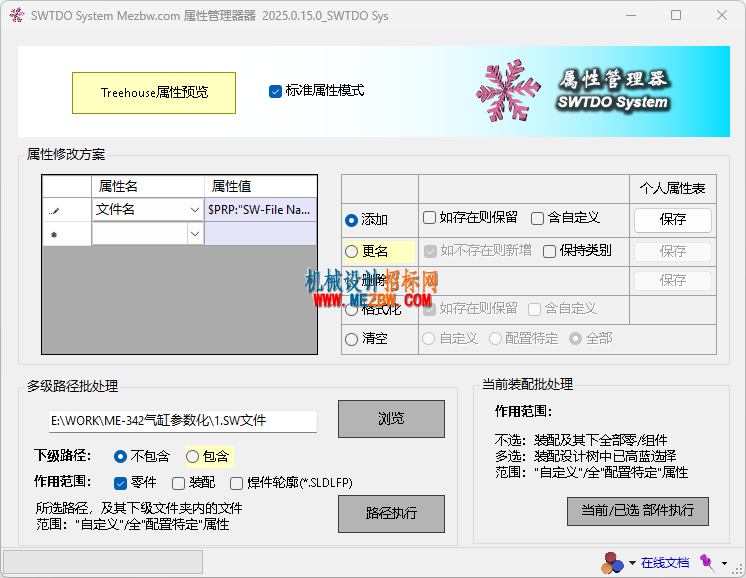
Step 3:
Standard Mode → Rename: File Name → ResolvedValue_ForRename [This is to extract the evaluated value of the file name and avoid pulling out the formula. Common knowledge: SW property values are divided into Formula and Resolved Value (absolute value)]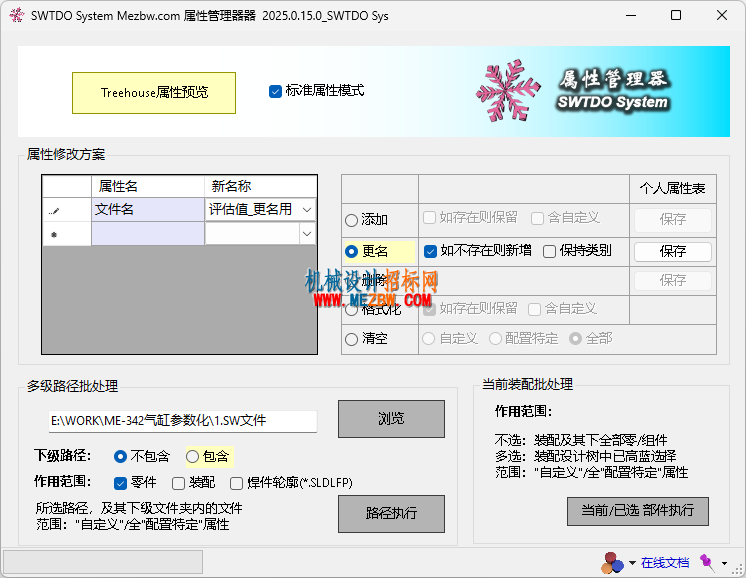
Step 4:
Standard Mode → Rename: ResolvedValue_ForRename → DWG No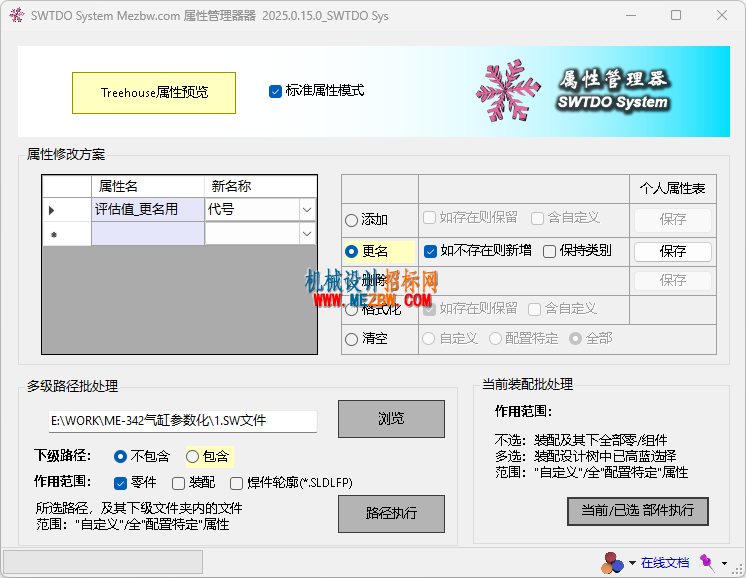
Assuming your file name never changes, here is a less rigorous operation (result: your DWG No will always follow the file name):
Steps 3 and 4 can be combined — directly rename File Name to DWG No.
Property values support SW equations and all mathematical operations.
- Note 1: SOLIDWORKS only started supporting property equations from version 2021. For SW > 2020, property values work without restriction. For SW <= 2020, only built-in SW functions can be used. Please check the SW Property Tab Builder for "SW-Mass". Square brackets in the Property Tab Builder must be replaced with half-width double quotes.
- Note 2: The SW Property Tab Builder does not list all SW function expressions.
When dealing with multiple different property requirements at the same time, this can serve as a backup.
Read the properties of Part A, keep the Property Manager open, open Part B, and you can copy the properties from A to B.
In English, file names with spaces are more common. In contrast, languages such as Chinese and Japanese rarely have spaces within words.
Conclusion: If your naming habit includes spaces, do not check this option. Otherwise, check it. Checking will enable more intelligent file naming rules.
In short: If not checked, spaces and underscores will be replaced with hyphens. If checked, splitting will be performed based on format.


