
Basic
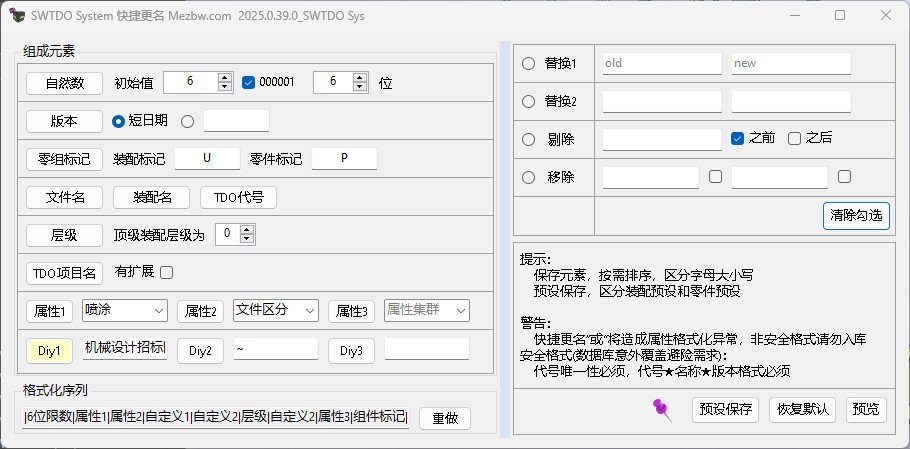
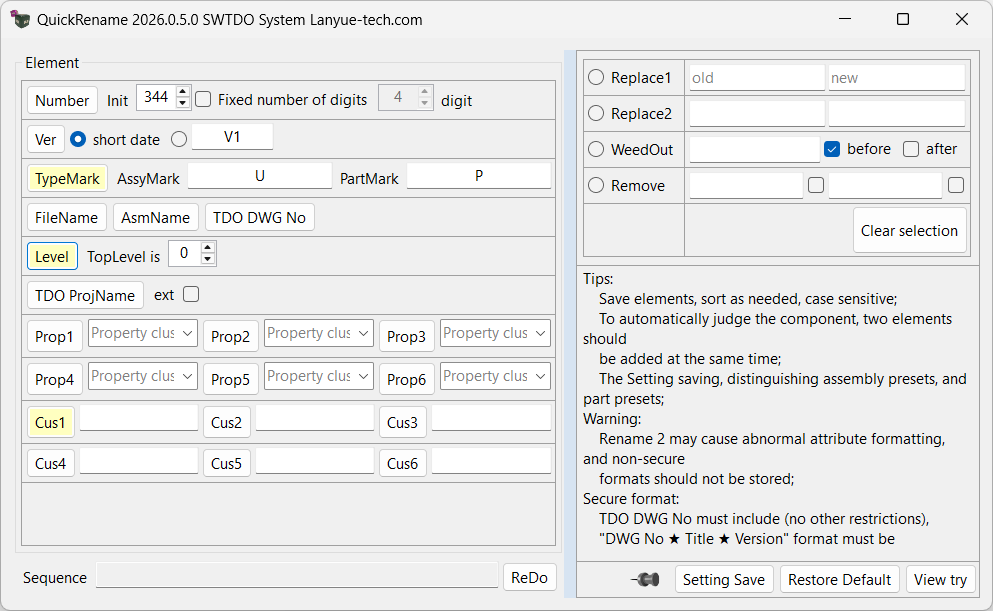
- Multiple selection support: Assembly multiple selection
- File differentiation and avoidance: Avoidance
Combination Techniques
Quick renaming+Prod attribute reverse writing: By using the elemental string combination of quick renaming, batch adjustment of attribute columns can be achieved through single column pasting
Quick renaming+attribute manager (related to attribute clusters): Any attribute added by the attribute manager is the basis of the quick renaming attribute cluster. It can batch assign attributes to files and borrow attributes during quick renaming
Multiple uses of quick renaming (handling any complex formatted file name)
File renaming and database warning
Change the file name from A to B: If B was previously entered into the database as an element of the BOM in another project. This change process will receive a warning from SWTDO
Important!!! Name change failed
There are three ways to rename: automatic renaming, quick renaming, and renaming in the number retrieval system (the upgrade of the number retrieval system is essentially also a renaming). All three involve engineering drawings and related assemblies.
Failure manifestation 1:
The part name has been changed, but the engineering drawing has not been renamed accordingly. Reason:
This issue is intermittent and occurs when using a Solidworks version lower than SW2018 (inclusive), and the drawing and part drawing are not in the same path. SW2019 or later is recommended.
During the testing phase, your operation was as follows: You copied the existing part A.SLDPRT and part A.SLDDRW from folder B in Windows to folder C.
You used the rename command; the part was renamed, but the drawing was not.
Note! You copied them through Windows, not through a Solidworks package. Copying through Windows breaks the internal links of Solidworks, and the rename command cannot find files outside of pure Solidworks operations.
For example, if you intend to rename part A to A111, but A111 already exists, you cannot rename the file to the same name. To avoid accidental deletion, this program will not easily delete local files.
If drawing A is already opened by another Solidworks file reader (i.e., A is “occupied”), it will also cause renaming failure.
Similar to read-only files like toolboxes, this system cannot modify them.
Failure manifestation two:
Not only the engineering drawings and assemblies, but also the components have not been renamed:
Please check the configuration-specific attributes of the component. If the component (part or assembly) already includes the “code” and “name” attributes, renaming will follow the attribute priority principle, especially for multi-configuration components (such as welded parts, which come with 2 configurations; please check the active configuration to see if it already has both of these attributes).
Solution: Remove these two properties
F2Rename
设计树下,使用F2键,可以对部件重命名(启动SW的设计树修改选项的前提),TDO中,这个重命名过程将包含工程图。
Attention: If there is a temporary save prompt for SW after using F2, it should be permanently closed here in order to synchronize changes to the engineering drawing
The quick renaming does not meet the uniqueness requirement of SWTDO
It should be noted that:
Quick renaming is to adapt our program to meet the requirements of any enterprise and some users with special preferences. This tool is not primarily promoted by TDO, and intelligent renaming is the recommended application for our entire system. The applications we recommend have strict data management logic and are also the fastest, most efficient, and precise operating routines.
The Quick Rename feature is unrelated to the GetNo
Quick renaming, unrelated to the pre-defined numbering system
Quick renaming customization, can use spaces, can use any special characters allowed by Windows
The hierarchy in quick renaming
One of the user’s needs is to specify the hierarchy of components in the overall assembly. For example, level 2 parts and level 3 parts.
Firstly, we believe that this requirement is a bug as the same component may appear at different levels.
But even for bugs, we strive to meet user needs as much as possible. We define the hierarchy of parts based on the last appearance of the part in the design tree
Pre defined file format for quick rename, distinguishing between assembly and parts
TDO allows users to predefine file formats and save them as a continuously valid file format, without the need for users to define them repeatedly every time they start.
Pay attention to this format, as there are different storage preprocessing for assembly and parts.
Prohibition of assembly with the same name as the part
Although SW allows assembly with the same name as the part, it is strictly prohibited in quick renaming.
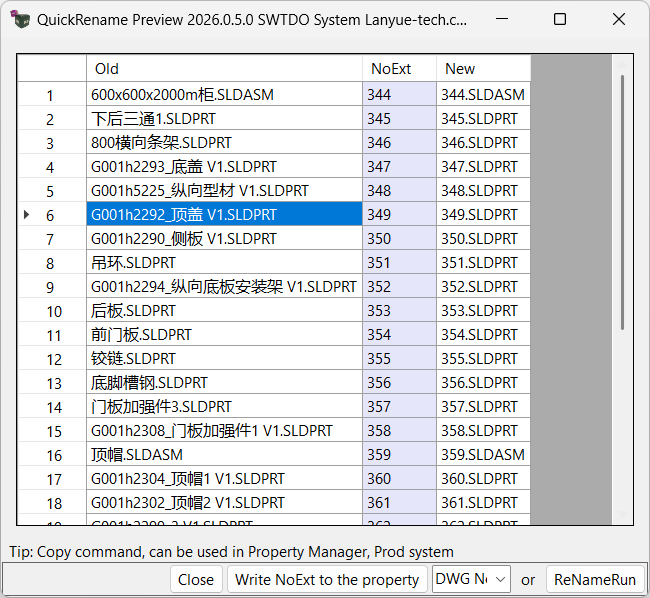
Quick renaming supports manual modification
格式预览中,青色单元格,允许手工修改


