
YouTube
bilibli
https://www.bilibili.com/video/BV1vGRnYoEjn
https://www.bilibili.com/video/BV1nZfHYSEMK/
https://www.bilibili.com/video/BV1CYREYvEag/
Basic
Note:
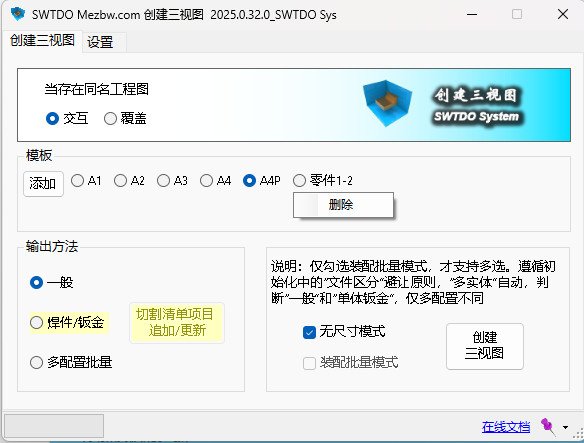
- Multi-select Support: Only when “Assembly Batch Mode” is checked, Create 3 Views supports multi-select
- Important! Supports multi-select of cut lists under Part
- File Type Avoidance: Avoided
Steps to Add Template
Steps:
- Rename: Choose any regular drawing and rename it to your desired template name, e.g. A2-BOM.SLDDRW (Do not use A1, A2, A3, A4, A4P, or Workflow — these are system reserved)
- In “Create 3 Views”, click “Add” and select A2-BOM.SLDDRW (this will save an Excel file)
- Open the part or assembly template, for example:
Deployment Path:\SWTDODT\Document templates\Part.PRTDOT
Deployment Path:\SWTDODT\Document templates\Assembly.ASMDOT - Run Property Manager on the template:
- Clear all properties
- Import the Excel file and add properties
Notes
- Verify drawing validity: Close all open SolidWorks files, open only A2-BOM.SLDDRW and ensure there are no defects
- Deployment Path:\SWTDODT\Document templates\Part.PRTDOT — filename and path cannot be changed
- This process does not handle drafting standards. For template-based drawings, this is sufficient
- Pure custom templates cannot guarantee full SWTDO functionality (such as Property Formatting or Prod System). However, if the drawing was created and modified based on SWTDO default templates, full functionality will be available.
Learn More About Template Settings
https://www.bilibili.com/video/BV1Kp4y1A7TC
Create 3 Views vs View Annotation
1. Create 3 Views for parts: Auto dimensioning based on sketch dimensions drawn by the user (Passive Dimensioning).
2. Create 3 Views for multi-body entity drawings: The first view uses passive dimensioning based on model dimensions; the rest use active dimensioning based on View Annotation.
3. For assemblies, only overall dimensions are output.
4. View Annotation is active dimensioning. It can dimension parts without SW features, such as STEP imports, references, mirrors, etc.
5. Create 3 Views supports more than 20 variations based on BOM settings, Cut List settings, multi-body types, sheet metal types, etc.
Simple understanding: Use View Annotation only when the dimensions from Create 3 Views are not satisfactory.
Output Method Explanation
- Multi-body batch output:
Generates a single-file, multi-sheet drawing (at least 2 sheets). The first sheet uses the configuration name; other sheets use cut list item names. Cut list sheets will include additional cut list property information. If “Flatten” is checked, sheet metal entities will add a flat-pattern view. All views will have dimensions added and spacing automatically adjusted. - General
Drawing name = configuration name, drawing filename same as part name - Multi-configuration batch output
Drawing name = configuration name. One sheet per configuration. Note: single file with multiple sheets. Only Model Output and Body List support single-file multi-file output (limited to models). In all cases, we follow the 1-to-1 principle, which is mandatory for BOM indexing. - Single-body sheet metal
Adds sheet metal annotation file and flat-pattern view
Two Methods of Auto Dimensioning
For multi-body parts, TDO’s Drawing Output produces a single file with multiple sheets. We use two dimensioning methods.
The first sheet (usually the weldment view) uses Passive Dimensioning, which reflects the designer’s intent when modeling.How you dimension the model is reflected in the drawing and is closely related to manufacturing datums. High-quality drawings require careful consideration of dimensioning references.
If the same method is used for subsequent sheets, irrelevant part dimensions will appear, which looks unprofessional.
Therefore, we switch to Active Dimensioning (View Annotation) for the remaining sheets, independent of how the model was drawn.
Combined Techniques
Create 3 Views + Batch Assign Fixed Face for Sheet Metal
Create 3 Views + Format Properties for Body List
Create 3 Views + Drafting Standard
Create 3 Views + Title Block Replacement
Create 3 Views + View Annotation
Create 3 Views + Cut List
Cut List Update / Append - This Tool Is Extremely Valuable!!
This tool works on existing 3-view drawings. When the part is a weldment and the user has manually selected cut list items (multi-select supported),
it appends or replaces entity drawings with strict renaming and update logic. This tool significantly reduces workload, especially for steel structures with large numbers of cut list items.
BOM Template and Cut List Table Template
Path change is not supported. Must be stored in the default SWTDODT folder.
However, you can modify or add the filename.
Default Position of BOM Table and Cut List Table
During batch processing, if the BOM or Cut List table position does not match the default template, please learn how to preset anchor points in the template.
In simple terms: Edit the sheet format of the drawing template, select a point, right-click and set it as the BOM anchor point. In SWTDO default templates, the BOM anchor is at the top-right corner of the title block, and the Cut List anchor is also at the top-right corner of the title block.
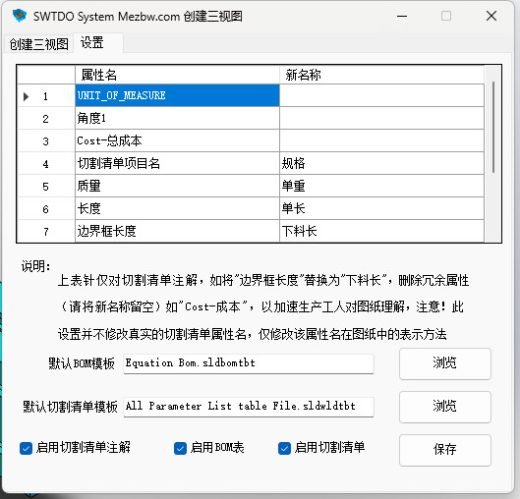
Settings - Cut List Property Table Settings
This table is for cut list annotations in entity drawings.
You can replace text descriptions or delete unwanted annotation items.
This table does not change the actual cut list property names — it only adjusts how they appear in the drawing.
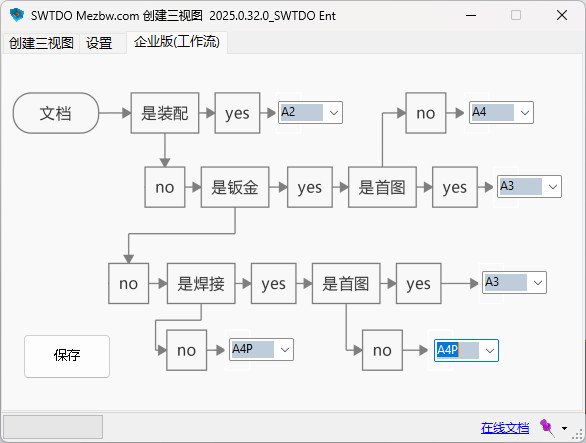
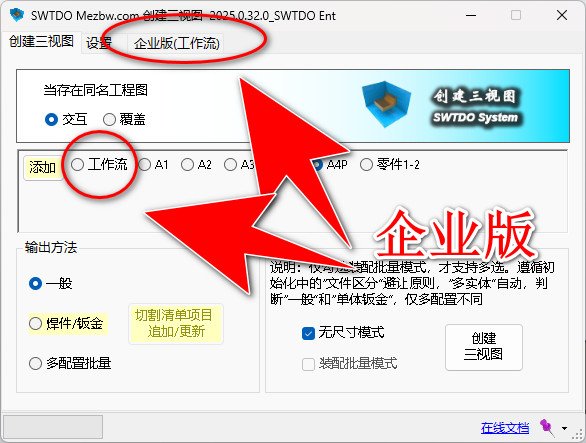
Enterprise Edition Dedicated Workflow
In SWTDO Enterprise Edition, the Workflow module (C-end) controls the drawing templates used by all U-end users.
Under Workflow, the system automatically determines drawing type based on presets, adjusts templates, and dynamically changes output results.
Comparison:
Personal Edition: Each batch can only apply one fixed sheet size.
Workflow: Automatically adapts preset sheet sizes and modifies output based on properties. It can generate sales drawings, presentation drawings, etc., because business drawings have very different content and display requirements from production drawings.


