
bilibli
https://www.bilibili.com/video/BV1qG411X7XT/
Basic
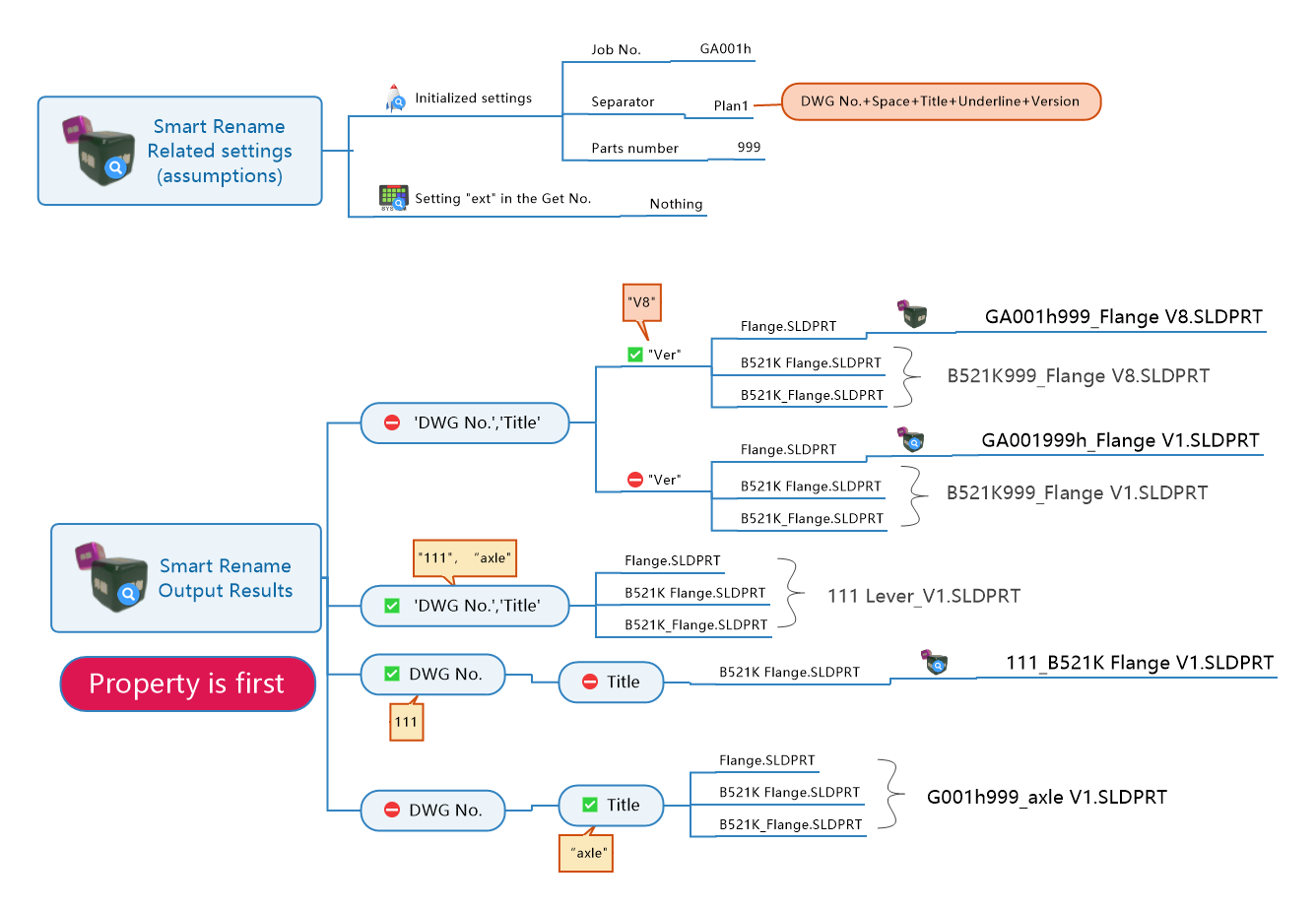
The SmartRename feature will autonomously determine the file naming format based on the structure of your current file, the preset numbering system, and the initialization preset of the SWTDO system. Although there is only one button, there are up to 30 logical variations
- Multiple selection support: Assembly multiple selection
- File differentiation and avoidance: Avoidance
The difference between SmartRename and QuickRename
- SmartRename relies on the preset of the numbering system and the job number and part number initialized by the SWTDO system; quick rename has no dependencies
- The results of SmartRename can be applied universally to all database-related commands in SWTDO, ensuring absolute uniqueness and reliability of all output files, such as sheet metal unfolding diagrams and weldment entity diagrams. Quick renaming is primarily aimed at complying with the mandatory rules of the user’s enterprise
Which one should you use?
When you are constrained by enterprise naming conventions, you should use quick rename. When you are not constrained by rules, you should use smart rename (reasonable, fast, and one-click completion)
Combination Techniques
SmartRename + PropFormat
SmartRename + GetNo
SmartRename + Prod system
Properties take precedence; PropFormatting should be done first.
Before understanding these two priority principles, please refer to the output of the automatic renaming.
These two priority principles apply only to the three attributes: “codename”, “name”, and “version”, because these three attributes will be reflected in the engineering diagram of the output file. Among them, the “codename” is the core attribute of the entire system.
The format priority principle of attribute formatting (original and drawing name separation) means that if the file name (including parts and assemblies) already meets certain conditions (such as the output result of intelligent renaming), the attributes will follow the naming rules of the file name to assign attribute values to the file.
The same attribute priority principle applies to intelligent renaming.
Our design ensures that, in individual combat situations, the outcome is exactly the same regardless of which command is used first.
When playing team battles, modifying filenames will affect collaborative design. When working together to complete a design task, filenames and attributes need to operate independently.
Subtle differences:
In terms of operational efficiency, attribute processing is extremely efficient, while the renaming command is less efficient because it requires querying references. Therefore, we recommend performing attribute formatting first, since many other attributes have uses besides the formatted attributes, and then performing smart renaming last.
Code serialization applies only to the “code” attribute and does not follow the format priority principle. When this control is applied, the system’s code will be used as the basis for assignment. This command is of great significance when referencing third-party standard part models or copying parts.
Important!!! Name change failed
There are three ways to rename: automatic renaming, quick renaming, and renaming in the number retrieval system (the upgrade of the number retrieval system is essentially also a renaming). All three involve engineering drawings and related assemblies.
Failure manifestation 1:
The part name has been changed, but the engineering drawing has not been renamed accordingly. Reason:
This issue is intermittent and occurs when using a Solidworks version lower than SW2018 (inclusive), and the drawing and part drawing are not in the same path. SW2019 or later is recommended.
During the testing phase, your operation was as follows: You copied the existing part A.SLDPRT and part A.SLDDRW from folder B in Windows to folder C.
You used the rename command; the part was renamed, but the drawing was not.
Note! You copied them through Windows, not through a Solidworks package. Copying through Windows breaks the internal links of Solidworks, and the rename command cannot find files outside of pure Solidworks operations.
For example, if you intend to rename part A to A111, but A111 already exists, you cannot rename the file to the same name. To avoid accidental deletion, this program will not easily delete local files.
If drawing A is already opened by another Solidworks file reader (i.e., A is “occupied”), it will also cause renaming failure.
Similar to read-only files like toolboxes, this system cannot modify them.
Failure manifestation two:
Not only the engineering drawings and assemblies, but also the components have not been renamed:
Please check the configuration-specific attributes of the component. If the component (part or assembly) already includes the “code” and “name” attributes, renaming will follow the attribute priority principle, especially for multi-configuration components (such as welded parts, which come with 2 configurations; please check the active configuration to see if it already has both of these attributes).
Solution: Remove these two properties


